
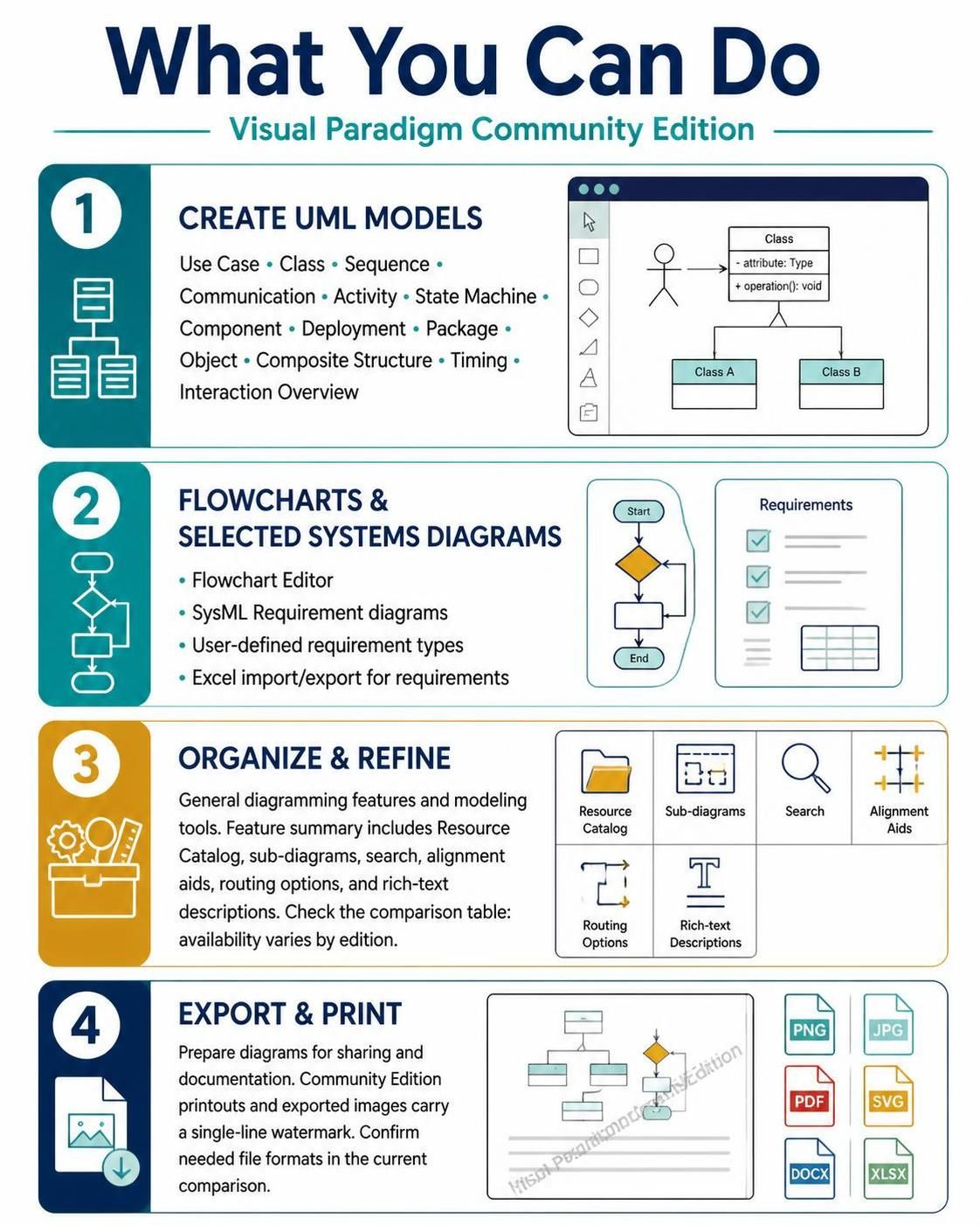
Visual modeling is the cornerstone of modern software architecture and systems engineering. It bridges the gap between abstract requirements and concrete implementation. Visual Paradigm, a leading tool in this domain, offers a robust suite of features designed to help architects, developers, and analysts visualize complex systems. This tutorial explores the four fundamental pillars of what you can achieve with this software: creating comprehensive UML models, designing flowcharts, organizing complex diagrams, and managing the export process.
1. Creating Comprehensive UML Models
The Unified Modeling Language (UML) is the industry standard for visualizing, specifying, constructing, and documenting the artifacts of software systems. Visual Paradigm supports a wide array of UML diagram types, allowing you to look at your system from every possible angle.
The Structural View
To understand how a system is built, you utilize structural diagrams. These define the static aspects of the architecture.
- Class Diagrams: The backbone of object-oriented design. They show classes, their attributes, operations, and the relationships among objects.
- Package Diagrams: Essential for organizing large systems. They group related elements (like classes or other packages) to manage complexity and prevent naming conflicts.
- Composite Structure Diagrams: These go deeper than standard class diagrams by showing the internal structure of a class, illustrating how its parts collaborate to implement behavior.
The Behavioral View
While structural diagrams show the skeleton, behavioral diagrams describe the dynamic aspects—how the system acts over time.
- Use Case Diagrams: These provide a high-level view of the system, depicting actors (users) and the use cases (functionalities) they interact with.
- Sequence and Communication Diagrams: These are types of interaction diagrams. Sequence diagrams focus on the time-ordered flow of messages between objects, while Communication diagrams emphasize the structural organization of objects that send and receive messages.
- State Machine Diagrams: Ideal for modeling reactive systems, these show the different states an object can be in and the transitions triggered by events.
The Architectural View
Finally, deployment and component diagrams help you understand the physical realization of your software.
- Component Diagrams: Show the organization and dependencies of software components.
- Deployment Diagrams: Illustrate the hardware topology and the runtime artifacts deployed on that hardware.
- Timing Diagrams: A specialized view often used in real-time systems to show changes in state over time.
2. Flowcharts & Selected Systems Diagrams
Not every problem requires the full rigor of UML. Sometimes, you need a straightforward representation of a process or a specific engineering requirement. Visual Paradigm includes tools for these specific scenarios.
Visualizing Logic with Flowcharts
Flowcharts are the universal language for describing business processes or algorithms. Using the Flowchart Editor, you can map out the logic of a process using standard symbols:
- Ovals for Start/End points.
- Rectangles for processing steps.
- Diamonds for decision points (Yes/No branches).
- Cylinders for database operations.
Systems Engineering with SysML
For systems engineers, SysML (Systems Modeling Language) is the equivalent of UML for broader system engineering. Visual Paradigm supports SysML Requirement diagrams, which allow you to:
- Define requirements with specific attributes.
- Create User-defined requirement types to match your organizational standards.
- Import/Export to Excel: This is a critical feature for teams working with requirements management tools. You can export your requirement database to Excel for review and import it back when updates are made.
3. Organize & Refine: The Modeling Environment
Creating a diagram is only half the battle; managing and refining it is where the real productivity gains happen. Visual Paradigm provides a suite of tools to keep your workspace clean and your logic sound.
Navigation and Search
As models grow, they become difficult to navigate. The Resource Catalog acts as a central library for your assets, allowing you to drag and drop reusable elements. The Search function allows you to quickly locate specific elements, operations, or classes within a massive project file.
Layout and Alignment
Cluttered diagrams are hard to read. The Alignment Aids and Routing Options ensure your diagrams look professional. Routing options allow you to choose how lines connect—whether they snap to the center of a shape, stick to the edges, or use orthogonal (90-degree) lines.
4. Export & Print: Sharing Your Work
The ultimate goal of modeling is communication. You need to share your diagrams with stakeholders who may not have the modeling software installed.
Export Formats
Visual Paradigm supports a wide variety of export formats to suit different needs:
- Image Formats (PNG, JPG): Best for embedding in emails or presentations.
- Vector Graphics (SVG): Ideal for documentation where high resolution is required regardless of zoom level.
- Office Formats (DOCX, XLSX): Useful for integrating diagrams directly into Word reports or extracting data into Excel.
- PDF: The standard for printing and formal documentation.
Community Edition Limitations
It is important to note the specific constraints of the Community Edition. When exporting or printing diagrams from this version, the output will carry a single-line watermark. While this allows for free usage, it is important to confirm your export workflow early if you need watermark-free images for client deliverables.
Rich-Text Descriptions
Diagrams are visual, but they often need context. The ability to add Rich-text descriptions to elements allows you to include bolding, lists, and formatting within the diagram notes, ensuring your documentation is comprehensive and easy to read.