
In the complex world of enterprise modeling and software architecture, data silos are a common enemy. Often, the intricate details of a UML model or a BPMN process are locked away inside a proprietary file format, making them difficult to analyze, report on, or integrate into automated workflows. This is where the QueryBase feature within Visual Paradigm becomes indispensable.
This tutorial provides a comprehensive guide to exporting a Project Snapshot. We will explore how to filter project data, structure it for specific needs, and generate a hierarchical JSON output that preserves the relationships between your diagrams and elements.
Understanding the Architecture of a Project Snapshot
When you export a project snapshot using QueryBase, you are essentially performing a structured data extraction. Unlike a simple “Save As” operation that creates a file for human reading, this process creates a data payload designed for machine consumption.
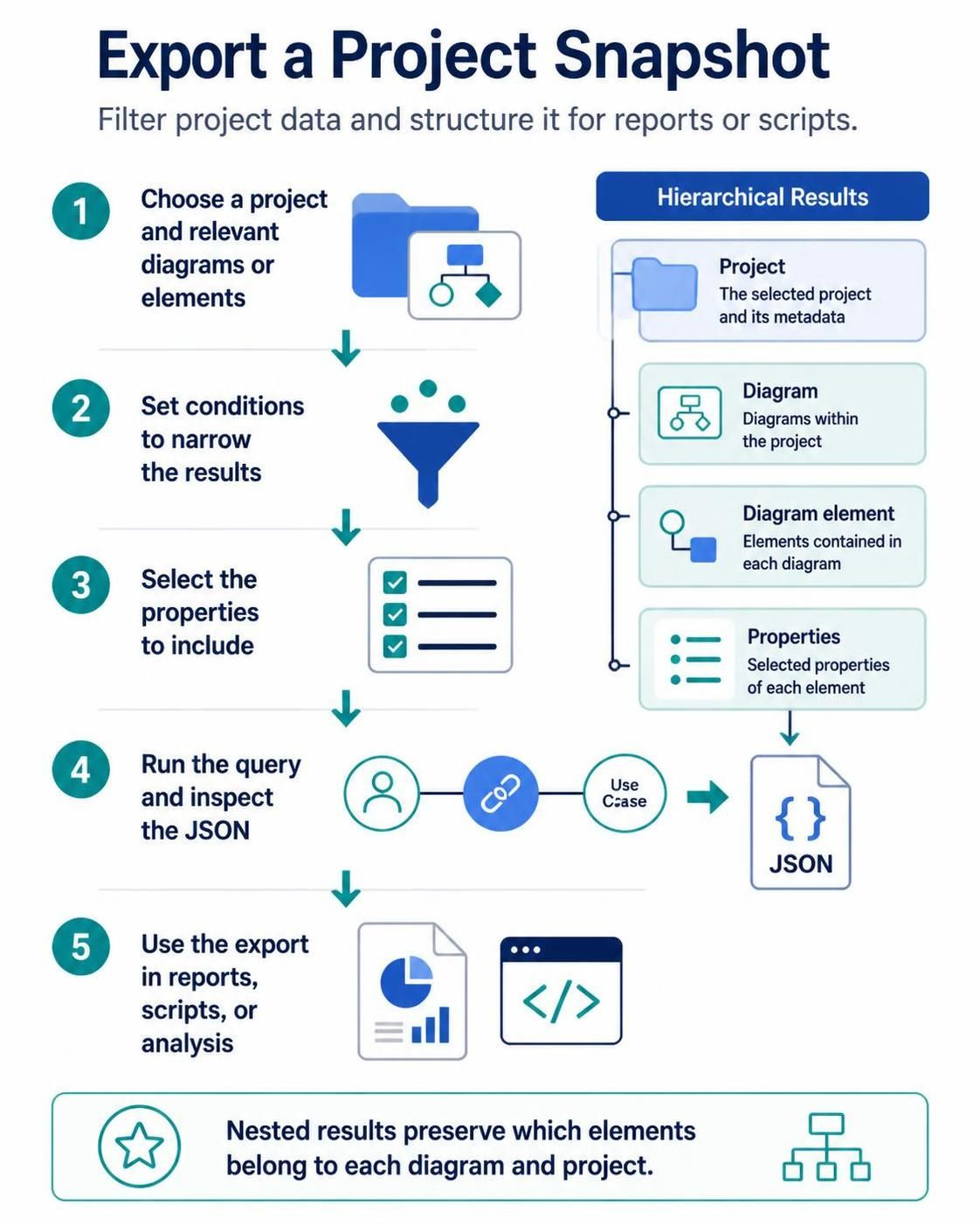
The core value proposition lies in the Hierarchical Results structure. In a flat data export, a diagram element might be listed with a generic ID, making it hard to determine which diagram it belongs to. However, a hierarchical export maintains the tree structure: Project → Diagram → Element → Properties. This ensures that downstream tools can instantly understand the context of the data.
The Hierarchical Data Model
To understand how the data is organized, visualize the extraction process as a nested tree. This structure allows for granular control over your output.
{
  "Project": {
    "Name": "MyArchitecture",
    "Metadata": { ... },
    "Diagrams": [
      {
        "Name": "Use Case Diagram",
        "Elements": [
          {
            "Name": "Actor",
            "Properties": { "Type": "Person", "Position": "Left" }
          }
        ]
      }
    ]
  }
}
Step-by-Step Guide to Exporting a Snapshot
Follow this systematic approach to leverage QueryBase for your reporting and analysis needs.
1. Select the Scope: Project and Diagrams
The process begins with defining the scope of your extraction. You must choose the specific project you wish to snapshot. Within that project, you can narrow the scope to specific diagrams or individual elements.
- Project Level: Select the root project to extract the entire repository.
- Diagram Level: Focus on specific views, such as a Sequence Diagram or a Class Diagram.
- Element Level: Target specific classes, actors, or use cases.
2. Filter and Refine with Conditions
Once the scope is set, you must define the conditions. This acts as a filter to narrow the results to the content you actually need. Imagine a funnel that only lets specific data pass through.
For example, if you are generating a report for stakeholders, you might set a condition to include only diagrams that have been modified in the last 30 days, or to include only classes that have a specific stereotype (e.g., <<Controller>>).
3. Define the Schema: Select Properties
Not all data is created equal. Selecting the specific properties to include is crucial for optimizing the output file size and relevance. You might only need the name, description, and ID of an element, or you might need the full attribute list.
By selecting only the necessary properties, you create a lean data payload that is easier to parse and manipulate in your reporting tools.
4. Execute and Inspect the JSON Output
After running the query, the system generates a structured JSON file. This is the “snapshot” of your project data at that specific moment in time.
It is highly recommended to inspect this JSON output before passing it to downstream tools. This step allows you to verify that:
- The hierarchy is correct (Project > Diagram > Element).
- The selected properties are populated as expected.
- No sensitive or unnecessary data was inadvertently included.
5. Integration: Using the Data
The final step is the application of this data. The nested JSON structure makes it ideal for various downstream workflows:
- Reporting: Feed the data into BI tools to generate dynamic reports on model completeness.
- Scripts: Use Python or JavaScript scripts to automate the generation of documentation.
- Analysis: Perform metrics analysis, such as counting the number of classes per package.
Conclusion
Exporting a project snapshot is more than just saving a file; it is a methodological approach to data governance. By using QueryBase to filter, select, and structure your data, you transform static diagrams into dynamic, actionable information assets. Whether you are building an automated documentation pipeline or performing a deep-dive analysis, this hierarchical approach ensures your data remains structured and meaningful.