
Introduction: Why I Tested This Integration
As a technical writer who juggles architecture diagrams, process flows, and stakeholder documentation daily, I’ve spent years searching for a workflow that doesn’t involve endless screenshotting, manual uploads, and version control nightmares. When I heard about Visual Paradigm OpenDocs’ new WordPress export feature, I decided to put it through its paces. This isn’t a sponsored review—just my genuine experience testing whether this integration actually delivers on its promise of turning complex knowledge bases into polished, publish-ready WordPress pages. Spoiler: It changed how I think about documentation publishing.
My OpenDocs Journey Before WordPress Integration
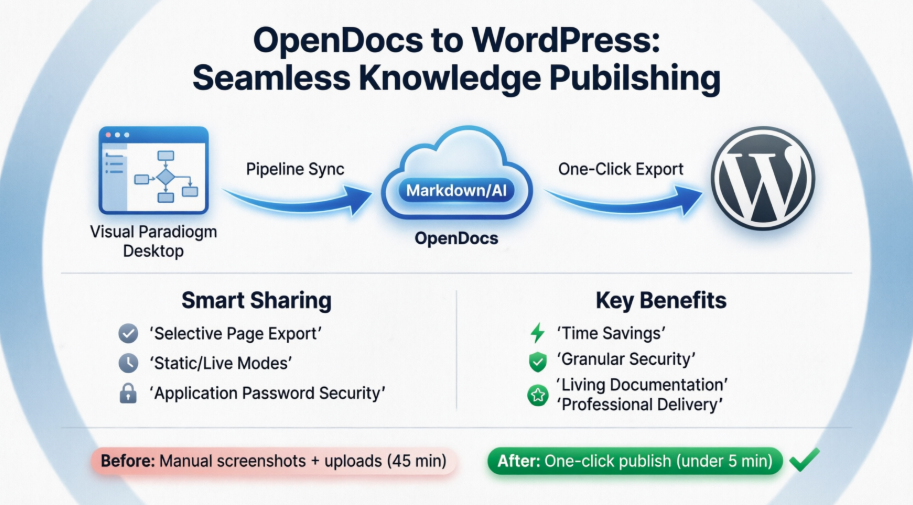
Before testing this feature, my documentation workflow looked like this: create diagrams in Visual Paradigm Desktop → export as PNG/SVG → upload to Confluence or a CMS → manually format → repeat every time a diagram changed. It was functional but fragile. OpenDocs already solved part of this by letting me embed live, editable diagrams directly into the pages. But sharing those pages externally still meant granting broad access or copying content manually. The WordPress integration promised to close that gap—and I was skeptical but hopeful.
What Is OpenDocs? A User’s Perspective
OpenDocs isn’t just another wiki tool. From my experience, it’s a knowledge management platform that finally treats diagrams as first-class citizens alongside text. I can:
- Write in the page with a clean, focused editor
- Insert UML, BPMN, or ArchiMate diagrams that stay fully editable
- Use AI to generate diagram drafts from plain-language prompts
- Organize content in a logical tree structure that mirrors how my team actually works
The real value? Everything stays connected. When I update a diagram in Visual Paradigm Online, it can sync through the Pipeline to my OpenDocs page. No more “diagram_v3_final_reallyfinal.png” chaos.
Testing the WordPress Export: A Step-by-Step Walkthrough
Here’s exactly how I published an Enterprise Architecture blueprint subset to my company’s WordPress site:
Step 1: Start the Share Flow
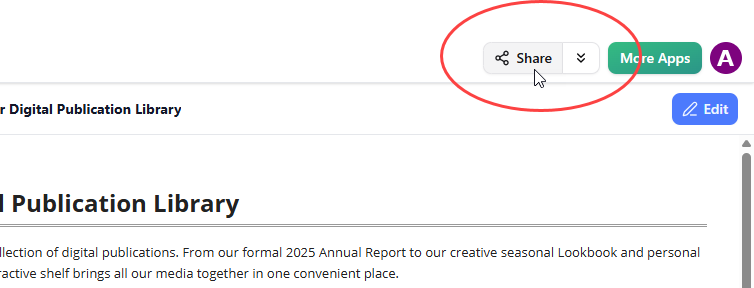
In OpenDocs, I opened my “Technology Domain” knowledge base and clicked the Share button at the top right.
Step 2: Select Precisely What to Share
The left panel let me tick only the pages I wanted public—like “Cloud Infrastructure Overview” and “API Gateway Patterns”—while leaving internal strategy pages unchecked. This granular control is critical for security-conscious teams.

Step 3: Configure Sharing Preferences
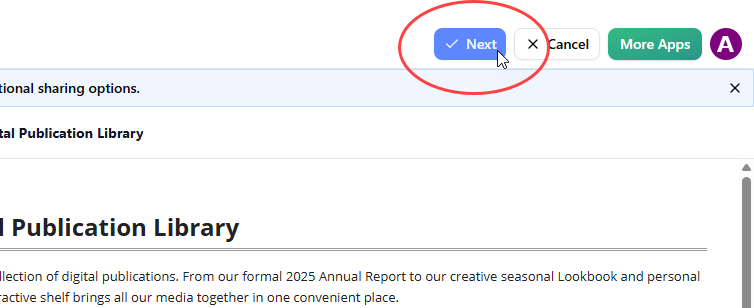
After clicking Next, I added a short description (“Q2 2026 Architecture Reference for Client Portal”) and chose my sharing mode:
- Static Snapshot: Perfect for compliance docs that shouldn’t change post-publication
- Live Update: Ideal for evolving references where stakeholders need the latest version
I selected Live Update since our architecture evolves quarterly.
Step 4: Choose WordPress as Destination
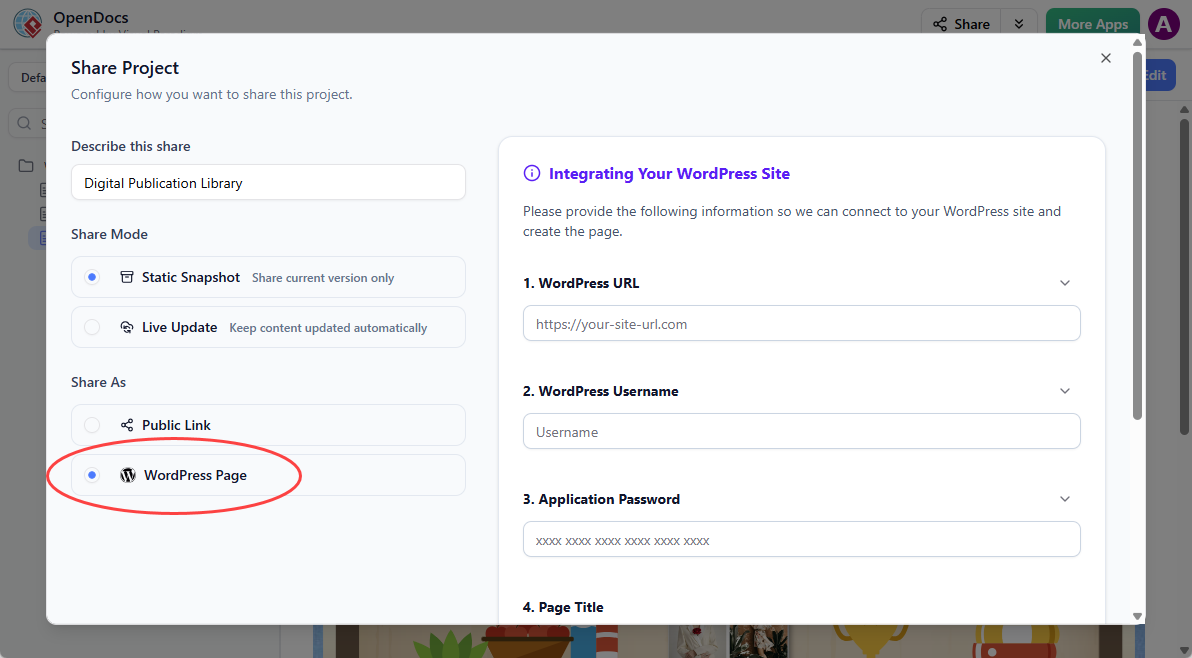
Under Share As, I picked WordPress Page.
Step 5: One-Time WordPress Setup
This part took about 2 minutes:
- Logged into my WordPress dashboard
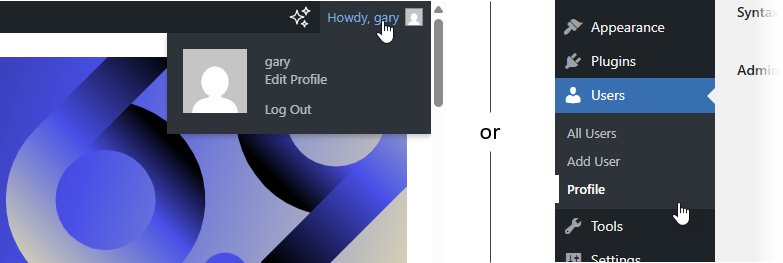
- Navigated to Users → Profile
- Scrolled to Application Passwords, entered “OpenDocs Integration,” and clicked Add Application Password
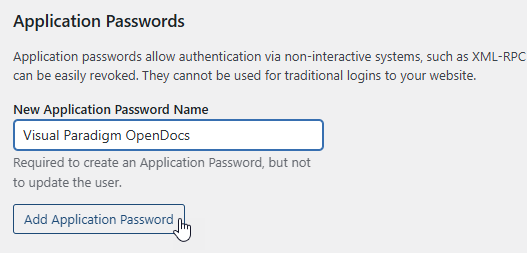
- Copied the generated password immediately (it disappears after this screen!)

Step 6: Connect OpenDocs to WordPress
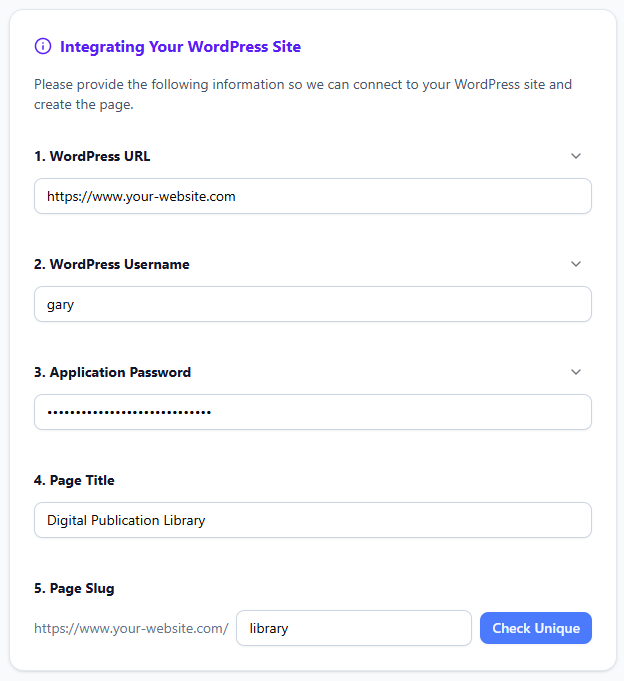
Back in OpenDocs, I filled in:
- WordPress URL:
https://www.our-company-portal.com - Username: My WordPress login
- Application Password: The one I just copied
- Page title: “Enterprise Architecture Reference – Q2 2026”
- Page slug:
ea-reference-q2-2026(ensuring uniqueness)
Step 7: Publish and Verify
I clicked Check Unique to confirm the slug wasn’t taken, then Publish to WordPress.

Within seconds, the page was live. Visiting it showed perfectly formatted content with interactive diagrams embedded—not static images.
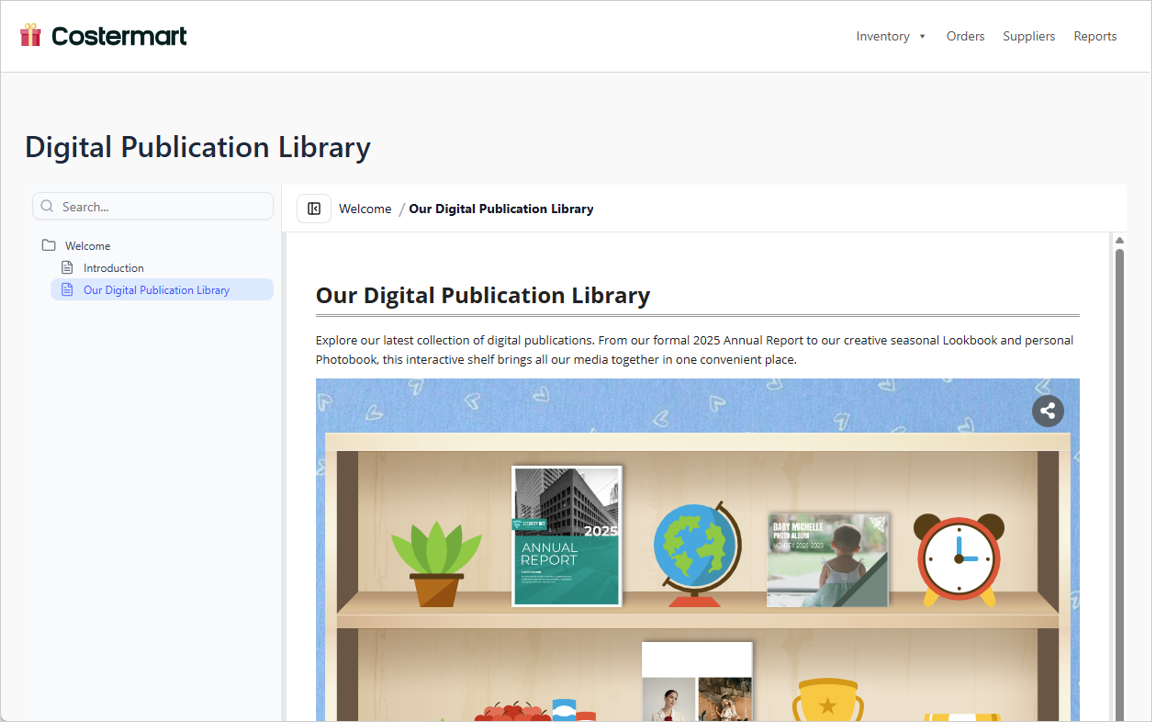
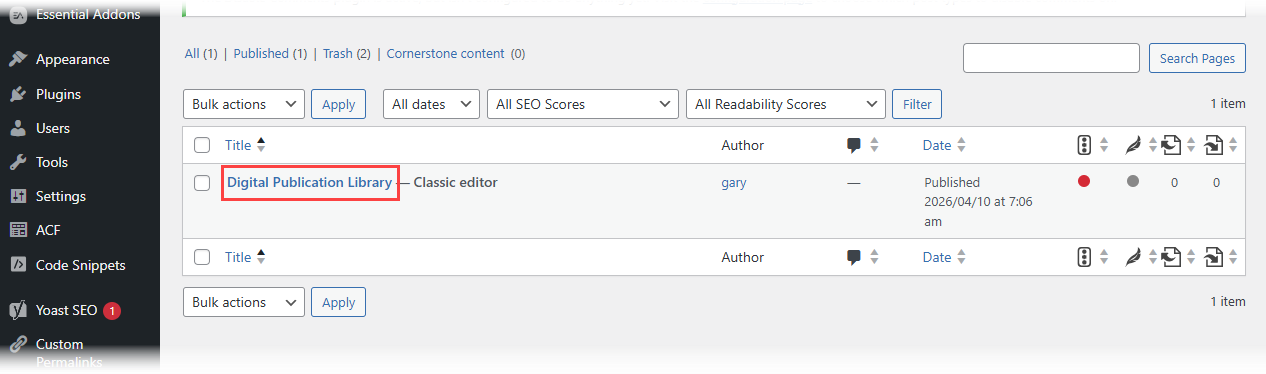
I could also find and further customize the page under Pages in WordPress admin, giving me flexibility to add custom CSS or WordPress-specific blocks if needed.
Important note: Visual Paradigm never stores your Application Password. For future shares, you can reuse the saved connection or generate a new password anytime in WordPress.
WordPress Page Export vs. Embed Code: Which Did I Choose?
OpenDocs also offers an HTML embed code option. Here’s my practical comparison:
| Use Case | WordPress Page Export | HTML Embed Code |
|---|---|---|
| Creating a new dedicated documentation page | ✅ Fastest path—no manual page setup | ❌ Requires creating page first |
| Adding content to an existing WordPress page | ❌ Creates a new page | ✅ Paste code anywhere |
| Publishing to non-WordPress sites | ❌ WordPress-only | ✅ Works on any platform |
| Needing WordPress-native features (themes, plugins) | ✅ Full compatibility | ⚠️ May require styling adjustments |
For my architecture reference, I chose WordPress Page Export because I wanted a clean, standalone page that matched our portal’s navigation. For embedding a single diagram into a blog post, I’d use the embed code.
Real-World Benefits I Noticed After One Week
After publishing three different content subsets to WordPress, here’s what stood out:
- Time Saved: What used to take 45 minutes of manual formatting now takes under 5 minutes
- Reduced Errors: No more broken image links or outdated screenshots
- Stakeholder Confidence: Clients see professional, up-to-date diagrams without accessing our internal tools
- Compliance Flexibility: Using Static Snapshot for audit documentation gave us a verifiable, unchangeable record
- Collaboration Boost: Different teams get tailored views—engineering sees technical deep dives, leadership sees high-level process flows
The VP Artifacts → OpenDocs → WordPress Workflow in Practice
This integration shines when viewed as part of Visual Paradigm’s broader ecosystem. Here’s how I use the full pipeline:
- Design: Create BPMN processes in Visual Paradigm Desktop
- Sync: Use the Pipeline button to push artifacts to OpenDocs (no file exports!)
- Enrich: Add context, decisions, and links in OpenDocs’ page editor
- Publish: Export selected sections to WordPress for stakeholder consumption
The result? A “living documentation” system where updates flow from design tools to public-facing pages with minimal manual intervention.
OpenDocs vs. Traditional Documentation Tools: A Quick Comparison
| Feature | OpenDocs + WordPress Export | Confluence + Manual Export | Markdown Files + Static Site Generator |
|---|---|---|---|
| Diagram Editing | Native, live, editable | Static images or plugins | External tools required |
| Publishing Granularity | Selective page export | Space/page permissions | Manual file selection |
| WordPress Integration | One-click page creation | Plugin-dependent or manual | Custom scripting needed |
| AI Assistance | Built-in diagram/text generation | Limited or third-party | None native |
| Learning Curve | Moderate (visual editor) | Low (WYSIWYG) | High (CLI, Git, templating) |
For teams already using Visual Paradigm for modeling, OpenDocs reduces context-switching. For WordPress-centric teams, the export feature eliminates the “last mile” publishing friction.
Conclusion: Who Should Try This Integration?
After hands-on testing, I believe this WordPress export feature is a game-changer for:
- Enterprise Architects who need to share blueprints with non-technical stakeholders
- Consulting Teams delivering client-facing documentation without exposing internal workspaces
- Product Managers maintaining public product specs alongside internal roadmaps
- Technical Writers tired of manual screenshot-and-upload cycles
It’s not perfect—initial WordPress setup requires careful password management, and the feature assumes you’re already invested in the Visual Paradigm ecosystem. But for the right use case, it transforms documentation from a static artifact into a dynamic, securely shared asset.
If you’re evaluating knowledge management tools with WordPress integration, I’d recommend starting with OpenDocs’ free tier to test the workflow. The time saved on publishing alone may justify the investment.
Have you tried this integration? I’d love to hear about your experience in the comments.
References
- Sync AI Diagrams to OpenDocs Pipeline Guide: Step-by-step tutorial for connecting Visual Paradigm design artifacts to OpenDocs via the Pipeline feature.
- Export OpenDocs Knowledge Bases Directly to WordPress Pages: Official release notes detailing the WordPress integration feature, setup steps, and use cases.
- Visual Paradigm Pipeline: The Bridge for AI Modeling Ecosystem: Documentation explaining how the Pipeline feature connects Visual Paradigm tools for seamless artifact sharing.
- Streamline Documentation Workflow with OpenDocs Pipeline: Video demonstration showing how to send diagrams from Visual Paradigm Desktop directly into OpenDocs.
- Visual Paradigm Online to OpenDocs Export Tutorial: Guide for exporting diagrams from the web-based Visual Paradigm Online tool into OpenDocs.
- My Journey to Seamless Documentation: Sending Visual Paradigm Creations Directly to OpenDocs: User experience review highlighting practical benefits of the OpenDocs integration workflow.
- Visual Paradigm OpenDocs: The Complete Developer’s Guide to AI-Powered Technical Documentation: In-depth developer-focused review covering OpenDocs features, AI capabilities, and integration patterns.
- OpenDocs Page-Based Sharing Update: Release notes for granular page selection and sharing controls within OpenDocs.
- Visual Paradigm OpenDocs Features Overview: Official feature listing for OpenDocs including diagramming, AI, and collaboration capabilities.
- OpenDocs Review: The AI-Powered Knowledge Platform That Transforms Team Documentation: Third-party review evaluating OpenDocs’ usability, AI features, and team collaboration benefits.
- OpenDocs – AI-Powered Knowledge Management Platform: Official product page with feature highlights, use cases, and sign-up options.
- From Model to Manual: A Software Engineer’s Guide to Syncing Visual Paradigm Desktop Diagrams with OpenDocs: Hands-on tutorial for engineers implementing the Visual Paradigm to OpenDocs workflow.