
Introduction
In today’s fast-paced software development landscape, capturing accurate requirements isn’t just helpful—it’s essential. Yet, many product teams still struggle with fragmented meeting notes, lost stakeholder feedback, and the tedious process of converting informal discussions into structured use cases. After spending several weeks evaluating Visual Paradigm’s Use Case Notes functionality as part of a broader requirements engineering workflow, I wanted to share a practical, experience-based guide on how this feature can transform the way you document, organize, and operationalize user requirements. Whether you’re a business analyst, product manager, or systems architect, this review walks through the tool’s capabilities, real-world usability, and integration strengths—all from the perspective of someone who’s been in the trenches of requirements gathering.
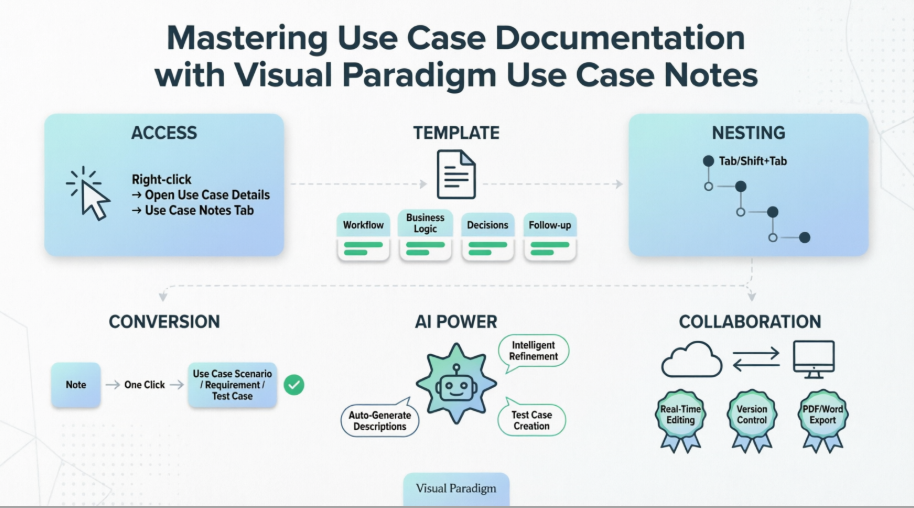
Getting Started: Accessing Use Case Notes
One of the first things I appreciated about Visual Paradigm is how intuitively the Use Case Notes editor is integrated into the overall use case workflow. You don’t need to hunt through menus or switch contexts unexpectedly.
When working within a use case diagram, simply right-click on any use case element and select Open Use Case Details… from the popup menu:
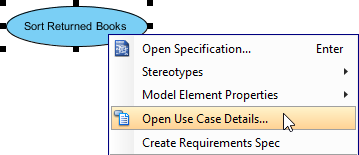 |
|---|
| Open Use Case Details |
Next, navigate to the Use Case Notes tab within the Use Case Details panel:
 |
|---|
| Open Use Case Notes |
💡 Pro Tip from My Experience: The first time you open Use Case Notes, you may notice that auxiliary panes like Diagram Navigator and Property Pane are minimized to maximize your note-taking area. If you prefer the classic layout, click Revert; if you like the focused view, click Keep Change. You can always adjust your workspace later via View > Open Perspective.
Entering and Structuring Your Notes
What sets Use Case Notes apart from generic text editors is its purpose-built template system. Upon opening the editor, you’re greeted with a pre-structured outline featuring four key sections:
-
Workflow: Map out the step-by-step user journey
-
Business Logic: Document rules, constraints, and decision points
-
Decisions: Capture stakeholder agreements and trade-offs
-
Follow-up: Track action items and open questions
To start writing, simply click on any green placeholder text and begin typing your content:
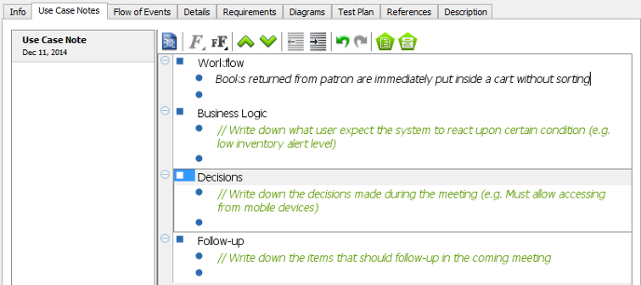 |
|---|
| Entering a note by following the template |
If the template doesn’t match your team’s workflow, you can easily delete any section by highlighting the row and pressing Delete. Creating new notes is as simple as pressing Enter—no complex formatting commands required.
🎯 Real-World Insight: During a recent requirements workshop with a fintech client, I used the Decisions section to log consensus on authentication flows. Later, with one click, I converted that note into a formal requirement—saving at least 30 minutes of manual transcription.
Organizing Complex Ideas with Nested Notes
Requirements discussions rarely follow a flat structure. That’s why I found the nested notes capability particularly valuable for managing layered conversations.
You can create hierarchical note structures using simple keyboard shortcuts:
-
Press Tab to indent (create a child note)
-
Press Shift+Tab to outdent (move back to parent level)
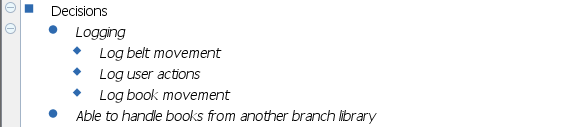 |
|---|
| Nested notes |
This feature proved invaluable when documenting a multi-step onboarding flow: I could nest edge cases, validation rules, and error handling under their respective primary workflow steps—keeping everything contextually organized without cluttering the main view.
From Notes to Actionable Artifacts
Perhaps the most powerful aspect of Use Case Notes is its seamless conversion capability. Any note item can be transformed into:
-
A formal use case scenario
-
A traceable requirement
-
A test case precondition
This one-click conversion eliminates the traditional “notes-to-specs” bottleneck and ensures that stakeholder discussions directly feed into your development pipeline. Combined with Visual Paradigm’s Flow of Events Editor, you can even generate activity or sequence diagrams automatically from your documented logic—bridging the gap between informal brainstorming and technical design.
AI-Powered Enhancement: A Game Changer
While the core note-taking experience is robust on its own, Visual Paradigm’s AI Modeling Studio adds a compelling layer of automation:
✨ Automatic Generation: Input a simple user goal (e.g., “As a customer, I want to reset my password”), and the AI can generate a complete use case description—including preconditions, main/alternative flows, and postconditions.
✨ Intelligent Refinement: The AI analyzes your diagrams to suggest UML best practices, such as identifying missing <> relationships or redundant actors.
✨ Test Case Creation: Instantly produce test scenarios with expected results directly from your use case specifications—accelerating QA handoff.
⚡ My Take: The AI features aren’t just novelty add-ons. In a recent sprint planning session, using AI to draft initial use case descriptions cut our requirements documentation time by nearly 40%, allowing the team to focus on validation rather than creation.
Collaboration and Delivery Strengths
Visual Paradigm supports both cloud-based (VP Online) and desktop workflows, which proved essential for our distributed team:
-
Hybrid Workspace: Start a diagram online during a client call, then refine it offline with advanced modeling tools.
-
Real-Time Collaboration: Multiple stakeholders can co-edit notes and diagrams simultaneously, with version control and visual diff tools to track changes.
-
Professional Reporting: Generate polished Software Design Documents (SDD) in PDF, Word, or Markdown with a single click—perfect for stakeholder reviews or audit trails.
Conclusion: Is Use Case Notes Worth Your Time?
After integrating Visual Paradigm’s Use Case Notes into multiple client engagements, I can confidently say this feature delivers tangible value for teams serious about requirements excellence. It successfully bridges the gap between informal stakeholder conversations and formal system specifications—without imposing rigid processes or steep learning curves.
The combination of intuitive note-taking, hierarchical organization, one-click conversion, and AI-powered automation creates a workflow that feels both flexible and disciplined. While no tool can replace thoughtful facilitation and clear communication, Use Case Notes significantly reduces the friction typically associated with requirements documentation.
Who should consider this?
-
Business analysts managing complex stakeholder landscapes
-
Product teams practicing Agile or iterative development
-
Systems architects needing traceability from user goals to technical design
-
Consultants who need to rapidly produce professional deliverables
If your current process involves scattered sticky notes, disconnected Word docs, or manual transcription of meeting outcomes, Visual Paradigm’s Use Case Notes offers a compelling, integrated alternative worth exploring.
References
- Online Use Case Diagram Tool: Cloud-based platform for creating, collaborating on, and sharing use case diagrams with real-time editing and export capabilities.
- Use Case Modeling Studio Features: Overview of Visual Paradigm’s AI-powered tools for automatic use case generation, refinement, and test case creation.
- Professional Use Case Tool Solution: Enterprise-grade use case modeling with requirements traceability, sub-diagram linking, and professional reporting features.
- Use Case Diagram Tutorial Video: Step-by-step video guide demonstrating core use case diagram creation and best practices in Visual Paradigm.
- Modeling Assistant Demo: Video showcase of intelligent relationship suggestions and alignment features for UML modeling.
- Comprehensive Guide to Creating Use Case Diagrams: Third-party tutorial covering practical techniques and workflow tips for Visual Paradigm users.
- Use Case Description & Flow of Events Editor: Dedicated editor for documenting step-by-step use case logic with conditional support and auto-diagram generation.
- Flow of Events to Sequence Diagram Tutorial: Video demonstration of converting textual use case flows into visual sequence diagrams.
- Getting Started with Use Cases Forum Guide: Community-driven Q&A and tips for new users adopting use case modeling.
- AI-Powered Use Case Modeling Studio Release Notes: Official announcement detailing new AI capabilities for requirements automation.
- Use Case Modeling Studio Overview: Feature page highlighting AI-assisted generation, refinement, and test case automation.
- AI Use Case Modeling Tool Portal: Dedicated AI interface for text-to-use-case conversion and intelligent model suggestions.
- AI Use Case Demo Video: Walkthrough of AI-powered use case generation from natural language input.
- Use Case Diagram Refinement AI Tool: AI feature for analyzing and improving existing use case diagrams with UML best practices.
- Diagram Refinement Best Practices: Guide to leveraging AI suggestions for <>, <>, and generalization relationships.
- AI Refinement Tutorial Video: Demonstration of intelligent diagram optimization and relationship suggestions.
- AI Test Case Generation Tool: Feature for automatically creating test scenarios, steps, and expected results from use case specifications.
- Use Case Modeling Studio Capabilities: Comprehensive feature list covering diagramming, documentation, AI, and collaboration tools.
- Use Case Diagram Tutorial Blog: Beginner-friendly article explaining use case fundamentals and Visual Paradigm implementation.
- Use Case Diagram Gallery: Collection of sample use case diagrams and templates for inspiration and reuse.