
In the world of “Diagram as Code,” maintaining consistency and readability is paramount. While Visual Paradigm’s VPasCode editor allows you to define complex logic flows, the true power lies in how you present that logic to your audience. By applying specific classes to your nodes, you can transform a basic flowchart into a professional, self-explanatory technical diagram.
This tutorial explores the mechanics of styling flowcharts in VPasCode, focusing on the strategic use of classDef and class to differentiate between terminals, decisions, and problem states.
Understanding the Syntax: classDef vs. class
To style a diagram in Mermaid (the syntax engine used by VPasCode), you must follow a two-step process: definition and application. This separation of concerns allows you to reuse styles across multiple nodes without repeating hex codes or shape definitions.
1. The Definition Phase (classDef)
The classDef keyword is used to create a named style. You define the visual properties such as background fill, border stroke, and text color. In the example below, we define three distinct styles:
- terminal: A soft green theme for start/end points.
- decision: An orange theme for logic gates.
- problem: A red theme for error states.
2. The Application Phase (class)
Once defined, you apply the style to a specific node ID using the class keyword. The syntax is class NodeID StyleName. This links the visual definition to the structural node.
Code Walkthrough: The Logic Check Flowchart
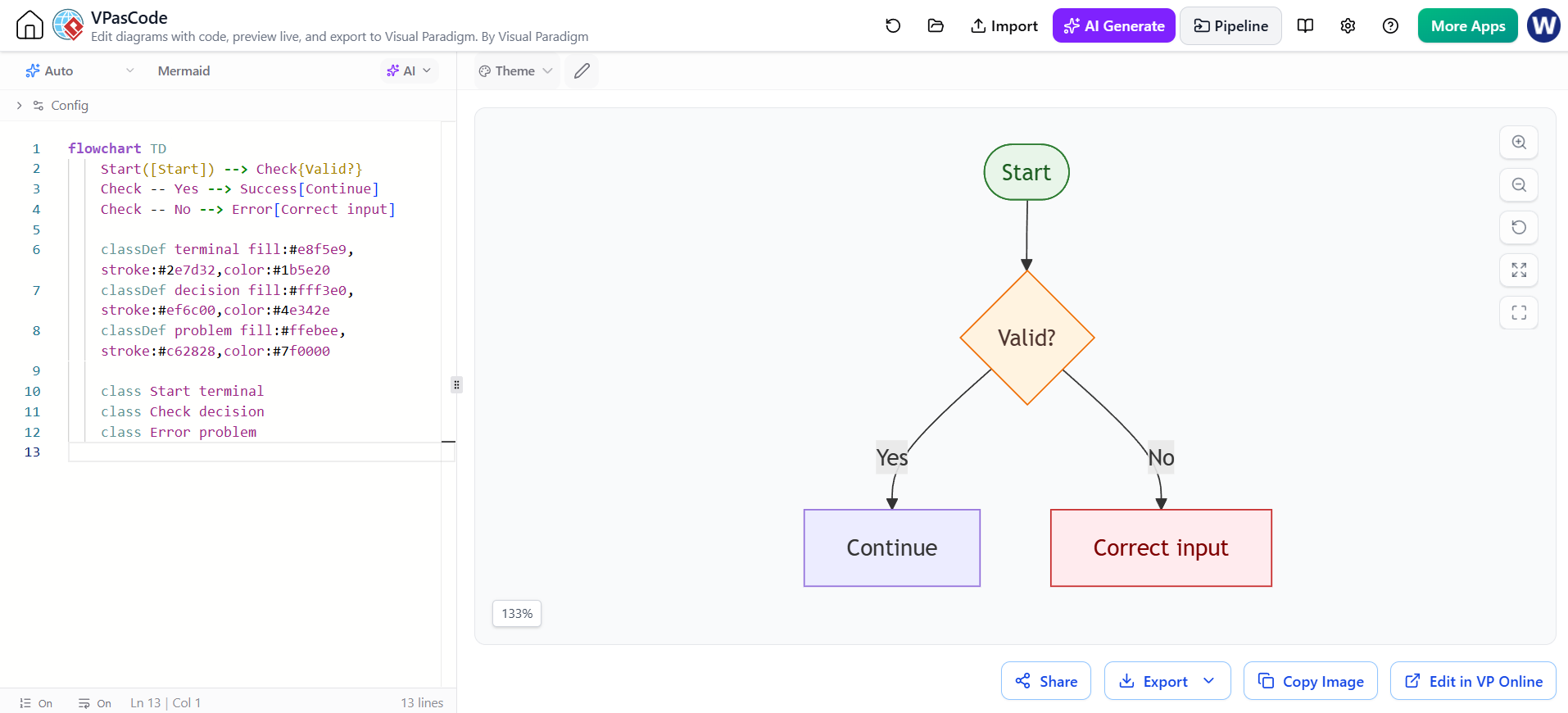
Let’s break down the complete code structure used to generate the flowchart shown in the editor. This example demonstrates a simple validation logic where the system checks if input is valid.
flowchart TD
    Start([Start]) --> Check{Valid?}
    Check -- Yes --> Success[Continue]
    Check -- No --> Error[Correct input]

    classDef terminal fill:#e8f5e9,stroke:#2e7d32,color:#1b5e20
    classDef decision fill:#fff3e0,stroke:#ef6c00,color:#4e342e
    classDef problem fill:#ffebee,stroke:#c62828,color:#7f0000

    class Start terminal
    class Check decision
    class Error problem
Analyzing the Structure
The diagram begins with flowchart TD, indicating a Top-Down layout. The nodes are connected using arrows (-->), and the decision point uses a diamond shape (denoted by the curly braces {Valid?}).
Notice the restriction on styling mentioned in the prompt. The code uses restrained colors:
fill:#e8f5e9 (Light Green) vsstroke:#2e7d32(Dark Green) creates a subtle, professional look.fill:#fff3e0 (Light Orange) for the decision node ensures it stands out without clashing with the terminal nodes.
Best Practices for Readable Diagrams
When writing code for diagrams, it is crucial to keep the visual hierarchy clear. By assigning a class to a node, you are essentially telling the rendering engine, “Treat this node differently from the standard flow.”
In the provided code, the Error node is styled with a “problem” class. This immediately alerts the reader that this path represents an exception or a failure state, distinct from the successful Continue path. This semantic coloring is a key feature of professional system architecture modeling.
Conclusion
By mastering classDef and class in VPasCode, you gain granular control over your diagrams. You can move beyond the default black-and-white aesthetics and create diagrams that communicate complex system behaviors at a glance. Remember to keep your styles consistent—using a limited palette of colors for specific node types ensures your diagrams remain clean and professional.