
Profile diagrams are a fundamental component of system modeling and architectural design. They provide the mechanism for extending the vocabulary of a modeling language, allowing engineers to define specific semantics for domain-specific applications. However, creating these diagrams introduces a layer of complexity. When the structure does not align with the underlying metamodel, errors occur. These errors can range from simple syntax violations to deep semantic inconsistencies. This guide provides a structured approach to identifying and resolving these issues without relying on proprietary tool documentation.
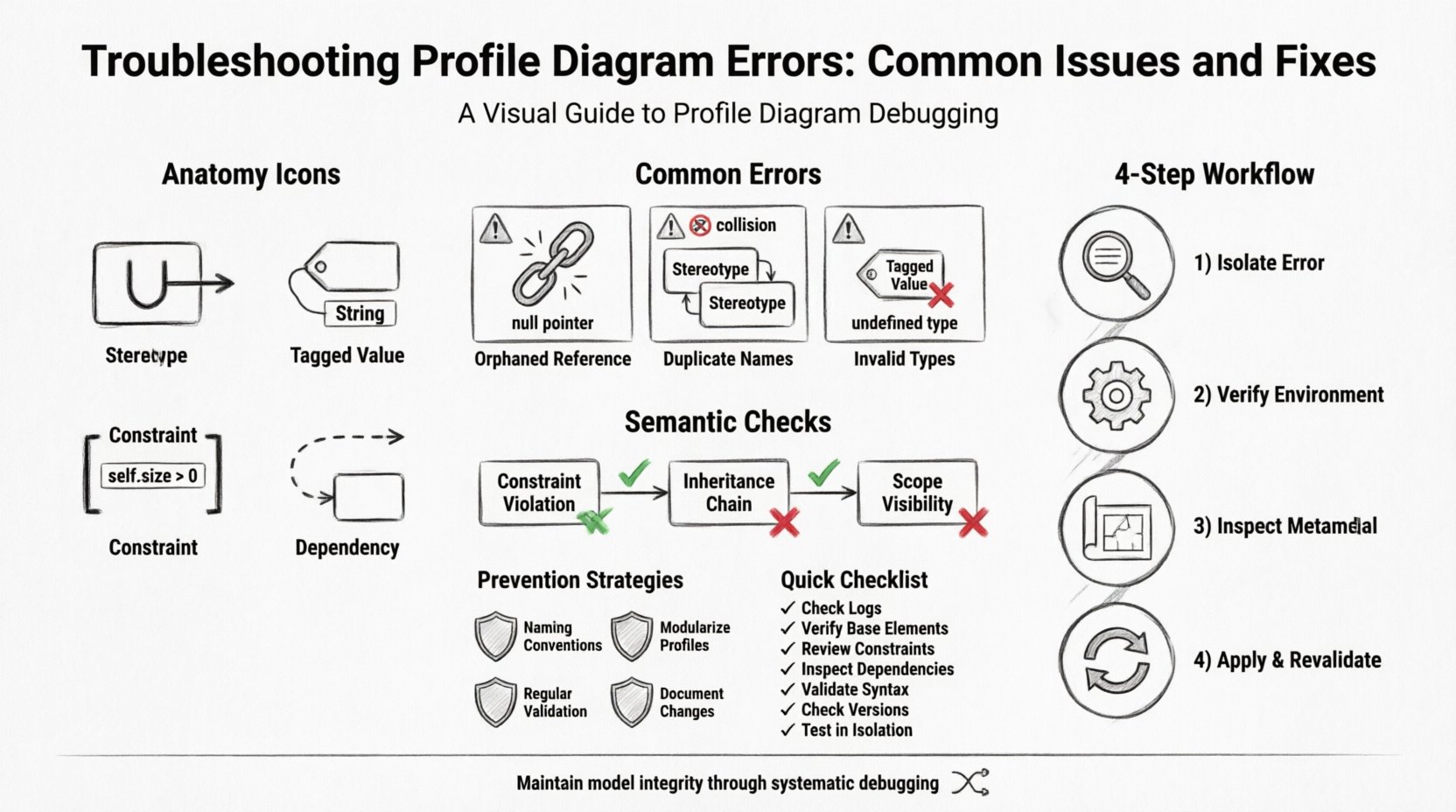
📐 Understanding the Anatomy of a Profile Diagram
Before addressing errors, it is essential to understand the components that constitute a profile diagram. A profile diagram defines a set of stereotypes, tagged values, and constraints. It acts as a bridge between generic modeling constructs and specific domain requirements. When troubleshooting, you must recognize that errors often stem from misalignment between these core components.
- Stereotypes: These are the primary extensions. They modify the behavior or meaning of existing model elements. Errors here usually involve invalid parent classes or missing definitions.
- Tagged Values: These add custom attributes to stereotypes. Issues often arise when the data type is undefined or the scope is ambiguous.
- Constraints: These enforce rules on the model. Syntax errors in constraint languages (like OCL) are common sources of validation failures.
- Dependencies: Profiles rely on dependencies to access base model elements. Broken links in these dependencies cause immediate rendering or validation failures.
⚠️ Common Syntax Errors and Structural Fixes
Syntax errors are the most visible issues. They prevent the diagram from compiling or validating correctly. These errors are typically flagged by the engine as red lines or error messages during the build process.
1. Orphaned Stereotype References
When a stereotype references a base element that does not exist or has been deleted, the diagram breaks. This is often referred to as an “orphaned reference.”
- Symptom: The element appears in the diagram but cannot be selected or edited. Error logs show a null pointer exception.
- Root Cause: The base class was removed, or the namespace was changed without updating the reference.
- Fix: Navigate to the profile definition. Check the “Applied To” field. Ensure the base classifier exists in the current package. If it does not, update the reference to the correct base class.
2. Duplicate Stereotype Names
Profiles must have unique names within their namespace. Creating a stereotype with the same name as an existing class or another stereotype causes a collision.
- Symptom: The tool refuses to save the diagram or throws a naming conflict exception.
- Root Cause: Lack of unique naming conventions across different packages or namespaces.
- Fix: Rename the duplicate stereotype. Use a prefix that indicates the domain, such as
Domain::User, to ensure uniqueness across the model.
3. Invalid Tagged Value Types
Tagged values require a specific data type (e.g., Integer, String, Boolean). If the type is not recognized by the modeler, validation fails.
- Symptom: The tagged value field accepts input but fails during export or code generation.
- Root Cause: The data type was misspelled or the standard library type was not imported.
- Fix: Open the property editor for the tagged value. Verify the type against the standard data type list. If a custom type is used, ensure the class defining that type is visible in the profile’s dependency list.
🧠 Semantic Validation and Logic Errors
Sometimes, a diagram compiles without syntax errors but still fails logical checks. These semantic errors indicate that the model is structurally sound but conceptually incorrect.
1. Constraint Violations
Constraints define rules that must always hold true. If the model data violates these rules, the profile is considered invalid.
- Example: A constraint states that a
BankAccountcannot have a negative balance. If the model allows a negative balance attribute, the constraint is violated. - Resolution: Review the constraint expression. Ensure the logic matches the intended business rule. Check if the variables used in the constraint actually exist in the target class.
2. Inheritance Chain Breaks
Stereotypes often inherit from other stereotypes. If the parent stereotype is invalid, the child inherits the error.
- Scenario: You create
MyProfile::SuperTypeandMyProfile::SubType. IfSuperTypeis marked as abstract but not defined,SubTypecannot be instantiated. - Resolution: Trace the inheritance tree. Ensure every parent class in the chain is valid and accessible. Check for circular inheritance, where A inherits from B and B inherits from A.
3. Scope and Visibility Mismatches
Elements within a profile have visibility levels (Public, Private, Protected). If an element is accessed from outside its scope, an error occurs.
- Scenario: A tagged value is marked private but is referenced in a constraint that resides in a different package.
- Resolution: Adjust the visibility modifier. If the element needs to be accessed globally, change it to public. If the access should be restricted, move the constraint to the same package or ensure the dependency path is valid.
🔗 Dependency and Relationship Issues
Profile diagrams rely heavily on relationships. These links define how the profile interacts with the base model. Broken or circular relationships are a frequent source of instability.
| Relationship Type | Common Error | Recommended Fix |
|---|---|---|
| Generalization | Cyclic Inheritance | Break the cycle by redefining the hierarchy or introducing an intermediate abstract class. |
| Dependency | Missing Target | Re-establish the link to the correct target element or remove the unused dependency. |
| Association | Multiplicity Mismatch | Ensure the multiplicity (e.g., 0..1, 1..*) matches the actual data constraints in the profile. |
| Realization | Interface Not Implemented | Ensure the profile implements all required operations defined in the interface. |
🛠️ Step-by-Step Troubleshooting Workflow
When an error occurs, follow this systematic workflow to isolate the problem. This method prevents unnecessary changes and ensures that the root cause is addressed.
Step 1: Isolate the Error Source
Do not attempt to fix the diagram immediately. First, identify which specific element is triggering the validation failure. Look at the error log or validation report. It usually points to a specific ID or name.
- Check the validation log for stack traces or error codes.
- Filter the report by severity (Error vs. Warning).
- Note the timestamp of the last successful build to see what changed.
Step 2: Verify the Environment
Ensure that the modeling environment is consistent. If you are working in a distributed system, check for synchronization issues.
- Confirm that all required libraries are loaded.
- Check for version mismatches between the profile definition and the base model.
- Ensure there are no file locks preventing the model from being read.
Step 3: Inspect the Metamodel
Compare the profile definition against the metamodel specification. The profile must conform to the rules defined by the metamodel.
- List all stereotypes defined in the profile.
- Verify that each stereotype extends a valid base class.
- Check that all constraints are syntactically correct according to the constraint language used.
Step 4: Apply Fixes and Revalidate
Once the issue is identified, apply the fix. Afterward, run the validation process again. Do not assume the fix worked without verification.
- Save the changes.
- Trigger a full model rebuild.
- Review the error log to ensure the specific error is gone.
🛡️ Prevention Strategies for Model Integrity
Preventing errors is more efficient than fixing them. Implementing best practices during the design phase reduces the likelihood of profile diagram errors.
1. Enforce Naming Conventions
Consistent naming prevents collisions and makes troubleshooting easier. Adopt a standard naming scheme that includes the domain and the element type.
- Use prefixes for stereotypes (e.g.,
<<Entity>>). - Use camelCase or PascalCase consistently for tagged values.
- Document the naming convention in a shared style guide.
2. Modularize Profile Definitions
Instead of one massive profile, break the profile into smaller, manageable modules. This reduces complexity and isolates errors to specific areas.
- Create a base profile for common extensions.
- Create domain-specific profiles that extend the base.
- Use dependency management to link these modules only when necessary.
3. Regular Validation Cycles
Do not wait until the end of the project to validate the model. Run validation checks frequently.
- Integrate validation into the development workflow.
- Set up automated checks that run on every save or commit.
- Review warnings immediately rather than ignoring them.
4. Documentation of Changes
Keep a log of changes made to the profile. This helps in tracking down errors that were introduced by recent modifications.
- Record who made the change and when.
- Document the reason for the change.
- Note any known workarounds or limitations.
🔍 Advanced Diagnostic Techniques
For complex models where standard troubleshooting fails, advanced diagnostic techniques can help uncover hidden issues.
Export and Inspect
Export the profile definition to a text format (such as XMI or XML). This allows you to inspect the raw data structure outside of the graphical interface.
- Open the exported file in a text editor.
- Search for tags that indicate errors or missing references.
- Look for broken ID references that the GUI might not highlight.
Dependency Graph Analysis
Visualize the dependencies between the profile and the rest of the model. This helps identify circular dependencies or unreachable elements.
- Generate a dependency graph.
- Trace paths from the root to the error location.
- Identify any isolated nodes that are not connected to the main graph.
Version Control Integration
Use version control systems to track changes in the model file. This allows you to revert to a known good state if the current state is corrupted.
- Commit changes before making major modifications.
- Compare versions to see exactly what was added or removed.
- Use merge tools to resolve conflicts if multiple users edit the profile.
🚧 Handling Performance Bottlenecks
Sometimes, errors manifest as performance issues rather than validation failures. A profile diagram that is too large or complex can cause the modeling environment to become unresponsive.
1. Reduce Graphical Complexity
Too many visual elements can slow down rendering. Simplify the diagram layout.
- Hide elements that are not currently in use.
- Use grouping containers to organize related stereotypes.
- Reduce the number of connections drawn on the canvas.
2. Optimize Data Types
Using complex data types or large arrays can increase memory usage.
- Use primitive types where possible.
- Avoid storing large amounts of text data directly in tagged values.
- Link to external files for large datasets instead of embedding them.
3. Clean Up Orphaned Data
Over time, models accumulate unused elements. Cleaning these up improves performance.
- Run a cleanup utility to remove unused classes.
- Delete obsolete stereotypes that are no longer part of the domain.
- Verify that all remaining elements have valid dependencies.
📋 Summary of Diagnostic Steps
When facing profile diagram errors, remember the following checklist to ensure a systematic approach.
- ✅ Check Logs: Always start with the error log to identify the specific error code.
- ✅ Verify Base Elements: Ensure all referenced base classes exist and are accessible.
- ✅ Review Constraints: Check that constraint syntax is valid and references exist.
- ✅ Inspect Dependencies: Ensure all links between the profile and other models are active.
- ✅ Validate Syntax: Run a syntax check to rule out basic formatting errors.
- ✅ Check Versions: Ensure the profile version matches the base model version.
- ✅ Test in Isolation: Create a minimal example to reproduce the error.
🔮 Future Considerations for Model Evolution
As modeling standards evolve, profile diagrams must adapt. New versions of the metamodel may introduce new requirements or deprecate old constructs.
- Stay updated with the latest standard specifications.
- Review deprecated features in your profile and plan for migration.
- Engage with the community to understand emerging best practices.
- Document migration paths when updating profile definitions.
By following these guidelines and maintaining a disciplined approach to model management, you can ensure that your profile diagrams remain robust, valid, and useful throughout the lifecycle of your system design. Consistency and vigilance are the keys to maintaining high-quality architectural models.