Want to visualize how a user logs into a system, including both success and failure paths? The PlantUML Sequence Diagram Builder makes it effortless. This powerful online tool lets you create professional, interactive sequence diagrams without writing a single line of code. It’s perfect for architects, analysts, and developers who need to document complex system interactions clearly. The best part? You can see your diagram update in real-time as you build it. This guide will walk you through creating a User Login Flow using the PlantUML Sequence Diagram Builder, turning your ideas into a clear visual story.
What is the PlantUML Sequence Diagram Builder?
The PlantUML Sequence Diagram Builder is a web-based application that simplifies the creation of sequence diagrams using the PlantUML syntax. It provides a structured, form-based interface where you define participants (like users, systems, or databases) and the sequence of messages exchanged between them. As you add elements, the tool automatically generates the corresponding PlantUML code and renders a live visual preview. This means you can focus on the logic of your system’s interaction, not the syntax.
Key Benefits of Using the Tool
- Clarity for Complex Interactions: Easily visualize intricate message flows and system behaviors.
- Simplified Creation: Define your diagram through intuitive forms, not complex code.
- Real-time Feedback: See your PlantUML code and visual diagram update instantly.
- Privacy & Control: All your data is stored locally on your computer, no accounts required.
- Professional Output: Generate clean, precise diagrams for documentation or presentations.
Getting Started: Building Your First Diagram
Creating a sequence diagram with the PlantUML Sequence Diagram Builder is straightforward. Here’s how to get started:
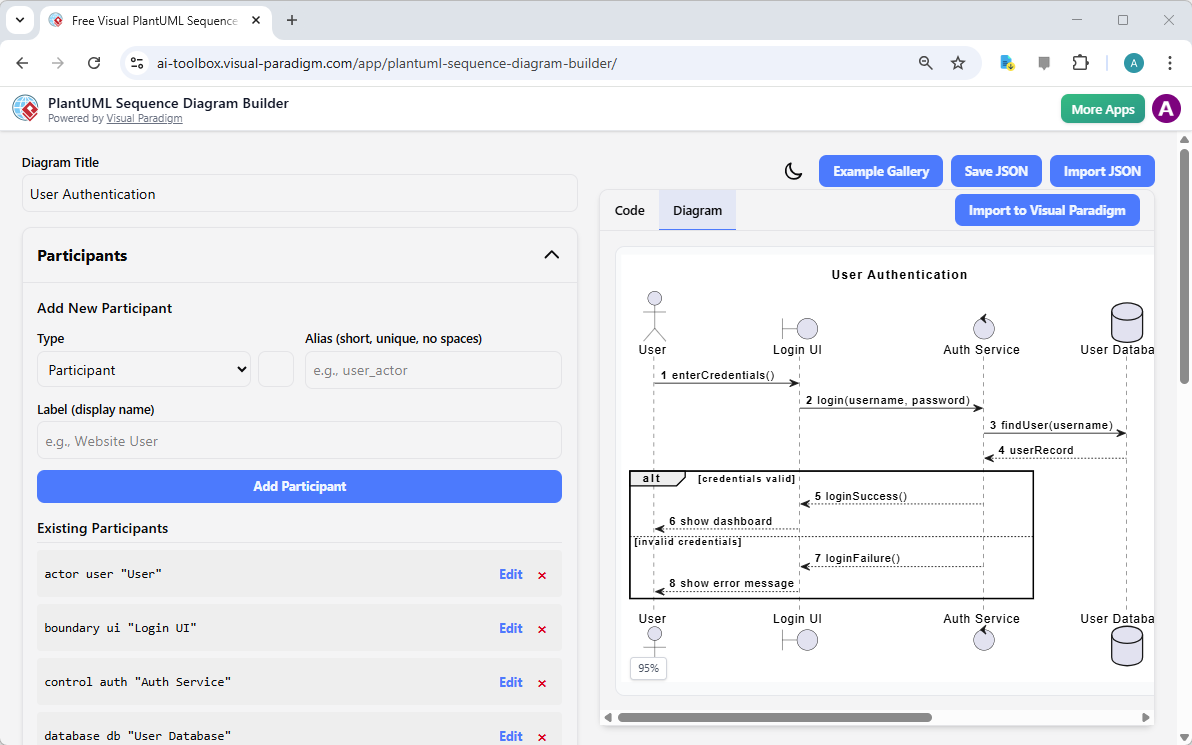
- Launch the Builder: Open the application in your browser. You’ll see a clean interface with input sections on the left and a live preview on the right.
- Set Your Diagram Title: In the “Diagram Title” field, name your diagram. For this example, we’ll use “User Authentication”.
- Add Participants: Expand the “Participants” section. Add a participant for the “User” (type: actor), “Login UI” (type: boundary), “Auth Service” (type: control), and “User Database” (type: database). Give each a unique alias and a clear label.
- Add Sequence Steps: Expand the “Sequence” section. Add a message from the User to the Login UI, such as “enterCredentials()”. Then add a message from the Login UI to the Auth Service, like “login(username, password)”. Continue adding steps to model the entire login process.
- Visualize Control Flow: Use the “Add Alt” button to create an alternative path for failed authentication. Add a condition like “[credentials valid]” and then a message for success, and another condition “[invalid credentials]” for a failure message.
- Save Your Diagram: Click the “Save JSON” button to download your project data to your computer.
How to Use the Tool: Core Workflows
The PlantUML Sequence Diagram Builder is designed for real-world use cases. Here are two common workflows:
Documenting a User Interaction Flow
Let’s say you need to document the “Reset Password” process. Start by setting the title to “Reset Password Flow”. Add participants: User, FE (Frontend), BE (Backend), EmailService, and DB. Then, add the sequence of messages: the user requests a reset, the frontend validates the email, the backend queries the database, the backend sends a reset link via email, and finally, the frontend displays a success message. This workflow helps stakeholders understand the entire process.
Visualizing an API Call Flow
For an API call, you might model a flow from a ClientApp through an APIGateway to a MicroserviceA, which then interacts with MicroserviceB and a Database. Use “Add Alt” or “Add Opt” fragments to show error handling or optional steps, making the diagram more comprehensive.
Understanding Key Concepts
Here are some essential terms to understand when using the tool:
- Sequence Diagram: A UML diagram showing the order of messages between objects.
- Participant: An entity in the diagram, like a user or a system component.
- Message: A communication between two participants.
- Fragment: A control structure, like `alt` for alternatives or `loop` for repetitions.
- Alias: A short, unique identifier for a participant.
- Label: The display name for a participant or message.
Advanced Features and Tips
Once you’re comfortable with the basics, explore the tool’s advanced features:
- Example Gallery: Access a library of pre-built diagrams to learn from or use as a template.
- Import/Export: Save your work as a JSON file for later use, or import an existing project.
- Live Code & Preview: The live code generation and visual preview ensure your diagram is always accurate.
- Professional Export: Export your diagram as an image or PDF for sharing.
Remember, the layout is automatically generated by PlantUML based on your code. While you can’t drag and drop elements, you can influence the layout by how you structure your participants and sequence steps.
Conclusion
Creating clear, professional sequence diagrams doesn’t have to be a chore. The PlantUML Sequence Diagram Builder empowers you to quickly and easily visualize complex system interactions. Whether you’re documenting a user login flow, an API call, or any other process, this tool streamlines the entire process. It’s a game-changer for anyone who needs to communicate system behavior effectively.
Ready to build your own sequence diagram? Try the PlantUML Sequence Diagram Builder now and see how easy it is to turn your ideas into a clear visual story.
Related Links
Sequence diagrams are a primary type of interaction diagram used to visualize the timing and order of messages exchanged between objects during specific software scenarios.
-
Comprehensive Guide to Sequence Diagrams in Software Design: This foundational resource covers the essential structure and purpose of modeling dynamic system behavior and interaction sequences.
-
AI-Powered Sequence Diagram Refinement Tool: Discover how to use artificial intelligence to improve diagram readability, structural correctness, and consistency automatically.
-
How to Model MVC with UML Sequence Diagram: This guide provides a detailed walkthrough on visualizing the interactions between Model, View, and Controller components within an architecture.
-
Animating Sequence Diagrams in Visual Paradigm: This tutorial demonstrates how to animate software workflows, providing a dynamic way to communicate system interactions to stakeholders.
-
PlantUML Sequence Diagram Generator: Use a visual builder tool to rapidly generate professional UML diagrams using PlantUML syntax and an intuitive participant wizard.
-
User Guide: Sequence Diagrams in Visual Paradigm: A comprehensive technical manual that outlines the full workflow for creating, editing, and exporting sequence models.
-
Visual Paradigm Gallery: Sequence Diagram Examples: A curated collection of real-world examples intended to provide design inspiration and guidance for complex interaction modeling.
-
Mastering Sequence Diagrams with AI Chatbot Tutorial: A practical case study focused on building diagrams for an e-commerce system through natural language interaction with an AI assistant.
-
Mastering Use Case Elaboration with Sequence Diagrams: Learn how to refine use cases by mapping flow-of-events to detailed message sequences for precise requirement validation.
-
Separate Sequence Diagrams for Main and Exceptional Flows: This article explores advanced techniques for improving model clarity by separating standard success paths from complex error-handling and exceptional flows.